Moving Your Contacts: Android to iPhone
Switching from Android to iPhone is exciting, and bringing your contacts with you should be a breeze. We’ve outlined the most effective ways to transfer your precious connections, complete with images to guide you every step of the way.
Thinking of selling your old Android? Request a provisional device valuation after checking your contacts have transferred safely.
Option 1 – Transfer using ‘Move to iOS’
Apple has a dedicated app for seamlessly moving data, including contacts, messages, photos, bookmarks, and accounts, between your old Android and new iPhone.
Important Note: This method can only be used when setting up a brand new iPhone. If your iPhone is already set up, please use one of the other methods below.
Follow Apple’s current migration instructions. On many Android phones you use the supported Move to iOS app; some newer compatible models can transfer through supported setup options without the app.
Step 1: Start iPhone Setup
On your new iPhone, begin the setup process until you reach the ‘Apps & Data’ screen. From here, select ‘Move Data from Android.’ A security code will appear on the screen.
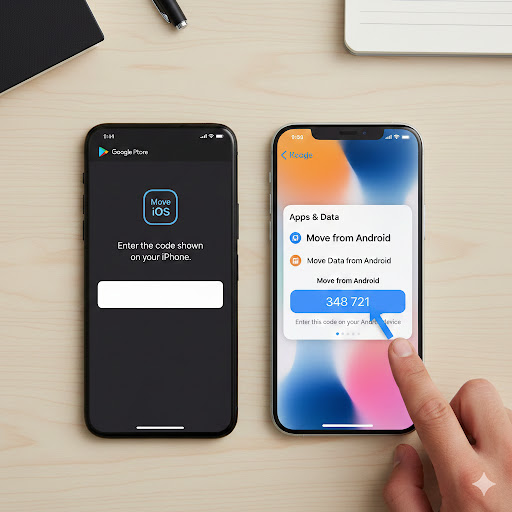
Step 2: Enter the Code on Android
Back on your Android device, open the ‘Move to iOS’ app and enter this code when prompted.

Step 3: Select Data to Transfer
Select the data you want to move across, ensuring ‘Contacts’ is chosen.
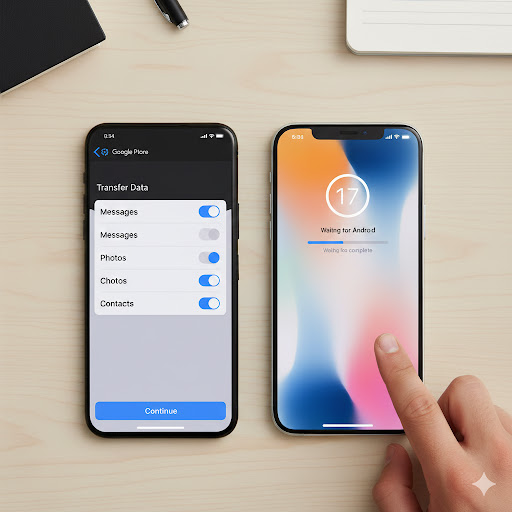
Step 4: Complete Transfer
The selected contacts should transfer to the new iPhone when the process completes. Transfer time varies with the amount of data, phone models and connection; leave both devices undisturbed until the iPhone confirms completion.
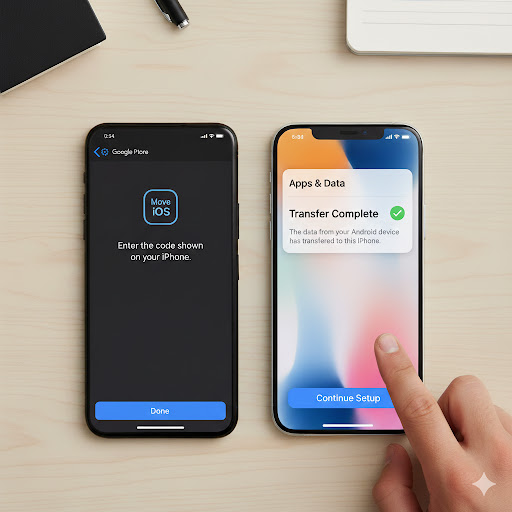
Option 2 – Transfer via the SIM card
Some older devices can transfer contacts through a physical SIM, but only if the contacts are actually saved on a compatible SIM card. Many modern Android phones store contacts in Google or device memory instead.
Step 1: Export Contacts to SIM
If your Android phone supports exporting contacts to a physical SIM, check its Contacts app for an Import/Export option. The menus differ by manufacturer, and some modern devices do not offer SIM export; use a Google account or another supported transfer method in that case.
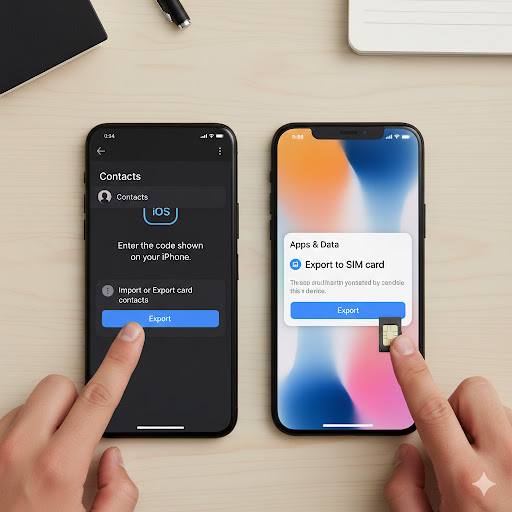
Step 2: Insert SIM into iPhone
Once the export is finished, move the SIM card from your Android phone to your iPhone.
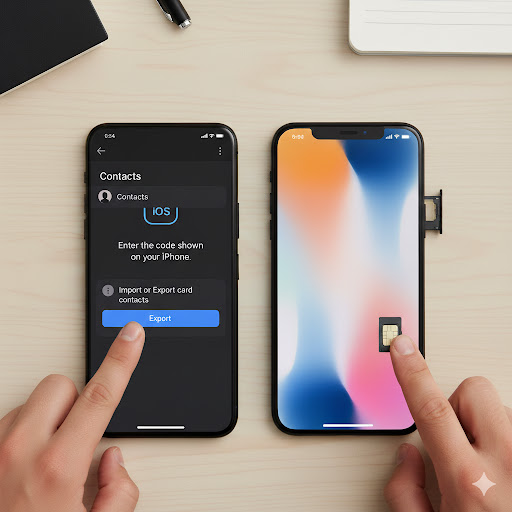
a. If your new iPhone has an eSIM instead of a physical SIM card, you may need a QR code to transfer contacts across. Contact your mobile provider for further support on this.
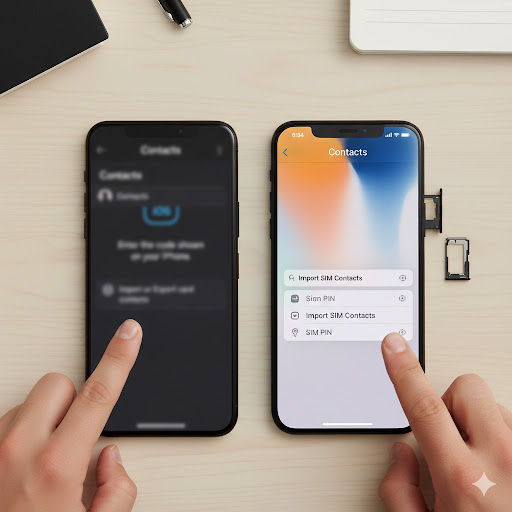
Step 3: Import SIM Contacts
On current iOS versions, go to Settings → Apps → Contacts → Import SIM Contacts. This only works if your compatible physical SIM actually has contacts saved on it; the menu may vary by iOS version.
Updated guidance · October 2026 · Based on Apple Support
Which way should you move Android contacts to an iPhone?
Quick answer: If your new iPhone is still being set up, Apple’s Move to iOS process can transfer contacts and other supported information. If the iPhone is already set up and your Android contacts are synced to a Google account, adding that account to the iPhone is often simpler than erasing anything. Importing from a physical SIM works only when contacts are actually stored on that SIM.
Method 1: Move to iOS during initial iPhone setup
- Charge both phones, connect the Android phone to Wi-Fi and keep them close together. Check that the destination iPhone has enough free storage.
- On your new or reset iPhone, follow setup until you reach Transfer Your Apps & Data, then choose From Android.
- Use the Move to iOS app on Android when prompted, following the code or connection instructions displayed by Apple.
- Select contacts and any other supported content you want to move. Keep both phones powered and close together until the iPhone’s progress indicator finishes.
- Open Contacts on the iPhone and check a few names and numbers before retiring, selling or resetting the Android phone.
Already set up your iPhone? Do not erase it just to transfer contacts without first backing up data you want to keep. Apple explains that the automatic migration normally occurs during initial setup; an existing setup may require manual transfer or a carefully planned reset.
Method 2: Sync contacts from your Google account
- On Android, check whether contacts are saved to and synced with the Google account you intend to use. Some numbers may exist only in phone storage or on a SIM.
- On iPhone, go to Settings → Apps → Contacts → Contacts Accounts → Add Account (the labels can differ slightly by iOS version).
- Choose Google, sign into the correct account and enable Contacts syncing.
- Open Contacts and allow syncing time. If names seem missing, check the Contacts lists and whether the original Android entries actually synced to that account.
Method 3: Import from an old physical SIM
This is a fallback, not the usual best method. Only contacts stored on a compatible physical SIM can be imported this way. With the SIM inserted, choose Settings → Apps → Contacts → Import SIM Contacts on current iOS versions. An eSIM or a SIM containing no stored contacts will not supply a contact list. Modern Android phones frequently keep contacts in an account or device storage instead.
Frequently asked questions
Will Move to iOS erase contacts from my Android phone?
Moving a copy does not mean you should immediately reset the old phone. Check the transferred entries and any other important data on your new iPhone first, and keep a separate backup.
Why did only some contacts transfer?
Contacts may be split between Google accounts, device-only storage and an old SIM. Review the account and contact-list settings on both phones; don’t assume every number is in one place.
Can I transfer without a computer?
Yes. Move to iOS, Google contact syncing and supported physical SIM imports can all work without a computer, depending on the phones and how the contacts are saved.
Trusted instructions
These steps are based on Apple’s Move from Android to iPhone guide, Apple’s manual transfer guide and Apple’s contact-account instructions.
Need local help with a device? Find our two Bristol stores or contact the team. Fone Revive is independent and is not an Apple-authorised service provider.