Moving Your Contacts: Android to iPhone
Switching from Android to iPhone is exciting, and bringing your contacts with you should be a breeze. We’ve outlined the most effective ways to transfer your precious connections, complete with images to guide you every step of the way.
Want to Sell Your Phone Visit Sell my Phone
Option 1 – Transfer using ‘Move to iOS’
Apple has a dedicated app for seamlessly moving data, including contacts, messages, photos, bookmarks, and accounts, between your old Android and new iPhone.
Important Note: This method can only be used when setting up a brand new iPhone. If your iPhone is already set up, please use one of the other methods below.
First, you’ll need to download the ‘Move to iOS’ app on your Android phone (it requires Android 4 or higher).
Step 1: Start iPhone Setup
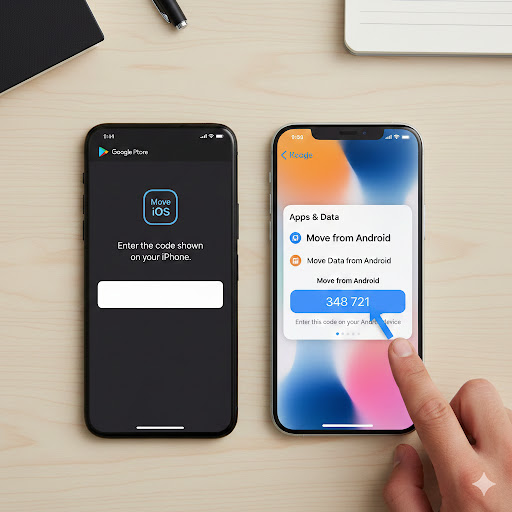
On your new iPhone, begin the setup process until you reach the ‘Apps & Data’ screen. From here, select ‘Move Data from Android.’ A security code will appear on the screen.
Step 2: Enter the Code on Android
Back on your Android device, open the ‘Move to iOS’ app and enter this code when prompted.

Step 3: Select Data to Transfer
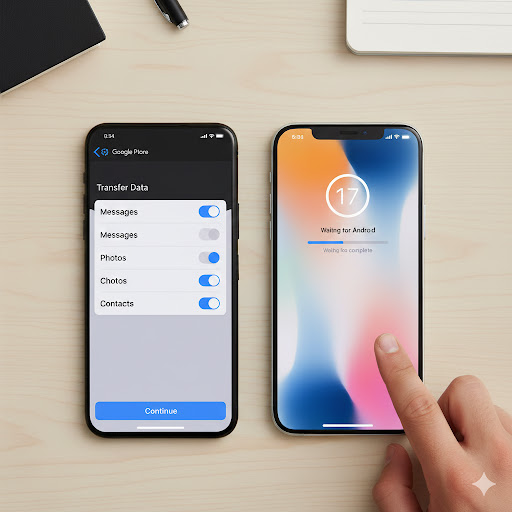
Select the data you want to move across, ensuring ‘Contacts’ is chosen.
Step 4: Complete Transfer
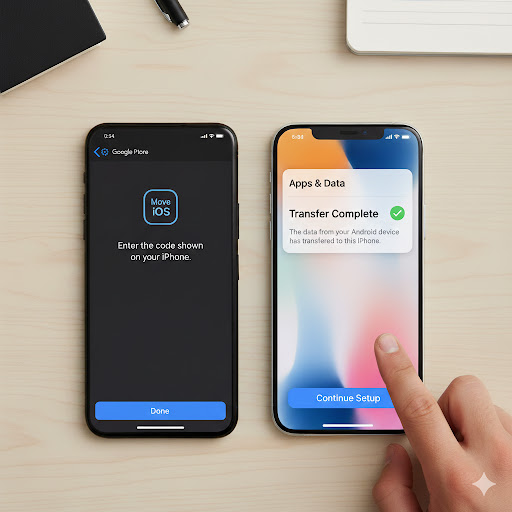
Your contacts and their info will now transfer across to your new iPhone. This process can take between 10-20 minutes to complete.
Option 2 – Transfer via the SIM card
You can also transfer contact details from your Android device to an iPhone using your SIM card.
Step 1: Export Contacts to SIM
Back up your contacts to the SIM card by opening the ‘Contacts’ menu on your Android phone. Look for an option like the three dots, then select ‘Manage contacts’ > ‘Import or export contacts’. Tap ‘Export’ to move them to your SIM.
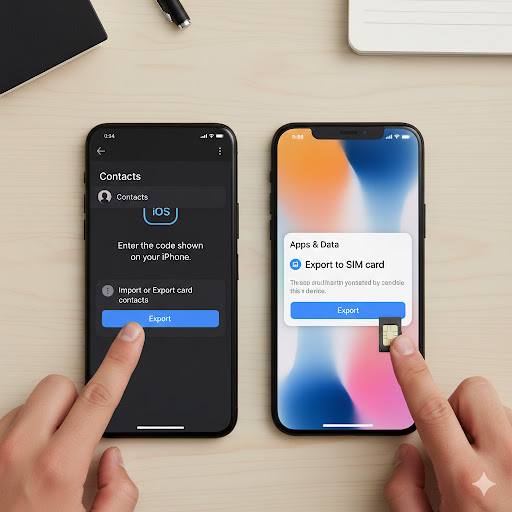
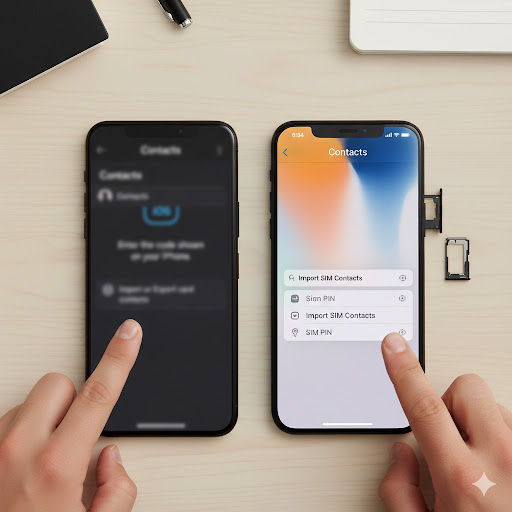
Step 2: Insert SIM into iPhone
Once the export is finished, move the SIM card from your Android phone to your iPhone.
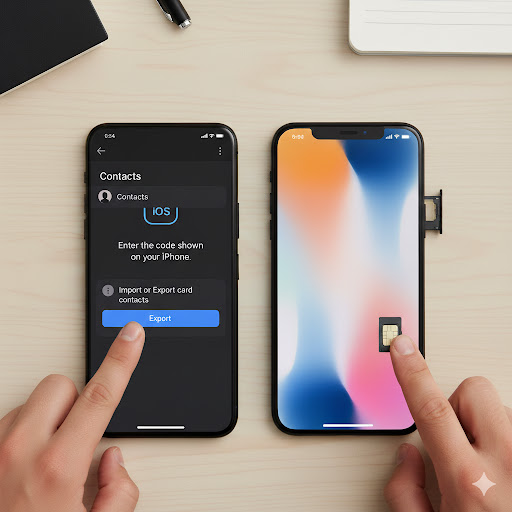
a. If your new iPhone has an eSIM instead of a physical SIM card, you may need a QR code to transfer contacts across. Contact your mobile provider for further support on this.
Step 3: Import SIM Contacts
Go to your iPhone’s Settings menu and select ‘Contacts’ > ‘Import SIM Contacts’.